AI Video Editor: Change a Clip by Describing It
This AI video editor works with words instead of a timeline: you add a short clip as a reference, describe the change, and VEO Omni 1.1 or Seedance 2.5 Omni renders a new version with a different style, setting or effect.
Restyle a videoReady in minutes · Free templates every day
It is made for creative reworks rather than routine cutting: there is no trimming, no splitting and no captions. Your original stays untouched, because every edit comes back as a separate clip in your account history, ready to compare and download.
How prompt-based video editing works
Open Create video, choose VEO Omni 1.1 or Seedance 2.5 Omni and attach your clip as a video reference. Then write the change in plain English, for example “turn this into a hand-drawn cartoon” or “make the colors look like faded film”. The model treats your footage as source material and generates a fresh take that follows the description.
Restyle a video with AI
One run can move a whole clip into another look: grainy film, neon night, watercolor, clay animation or an anime-style drawing. Because the model redraws the frames instead of laying a filter on top, the style reaches every part of the shot. Expect some details to shift along the way, which is the trade-off for a full makeover.
Change the background or the whole scene
To replace the setting, name what should stay and what should change: “keep the person and the movement, put them on a beach at sunset”. Mention light and time of day so the new place matches. Each run can come out a little differently, so a second attempt with a tighter prompt is normal, not a sign that something went wrong.
Starting from a photo instead of a clip
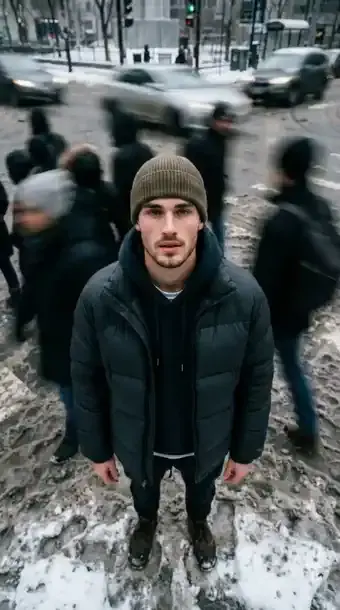
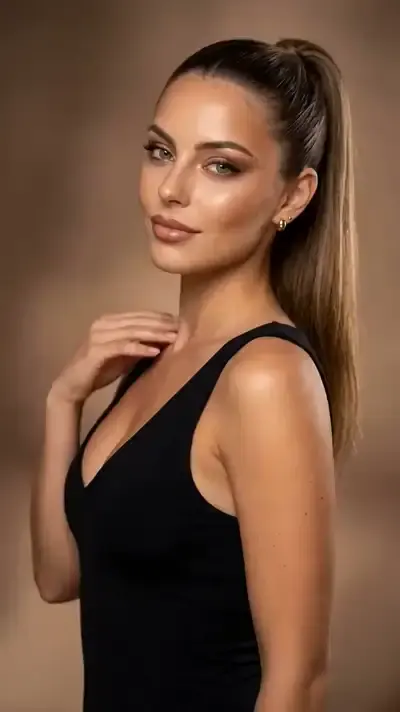
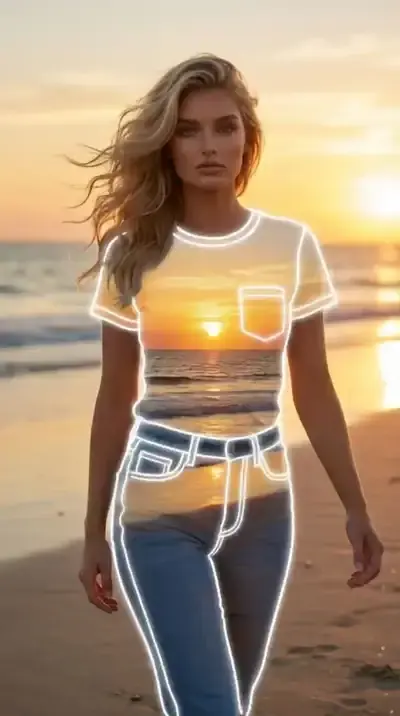
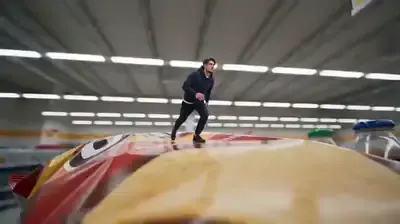
No footage yet? Effect templates such as Sports Bar Time Freeze, Time-Lapse Crowd Effect and Stretchy Face Effect create this kind of moment from a photo. Each one already holds its scene and camera move, so all you add is the picture, and the star cost is shown before you run it.
What this editor does not do
There is no timeline here, no frame-accurate trimming, no titles or captions and no audio mixing. If you need to cut a long recording, do that in a regular editor first and bring in only the short part you want to rework. Use footage you shot yourself or have permission to use, and never place real people in scenes they did not agree to.
Ready-made templates


FAQ
Can AI replace my regular video editor?
Not entirely. For creative changes, a single prompt can stand in for a lot of manual work, such as restyling a clip or moving it to a new scene. Precise cuts, titles and sound work still belong in a timeline editor, so the two tools complement each other.
What is AI video to video?
It means giving the model an existing clip as input rather than starting from a photo or from text alone. Here that is done with a video reference in VEO Omni 1.1 or Seedance 2.5 Omni: your clip guides the new version while the prompt says what to change.
Which clips work best for AI editing?
Short, steady clips with one clear subject and decent light give the model the most to hold on to. Fast cuts, heavy motion blur or a dozen people in frame make results less predictable. Trim your footage to the moment you care about before you upload it.
How much does AI video editing cost?
Edits are paid in stars, like any other generation on the site, and the number of stars an edit needs appears on screen before anything starts. Confirmed new accounts start with 5 stars, and plans or extra star packs are available on the Pricing page.