Text to Video AI: Describe a Scene, Get a Clip
Text to video AI turns a written description into a short clip: you say who is in the frame, what happens and where, and the model builds the characters, motion, light and sound from scratch. No photos or footage are involved.
Turn text into a videoReady in minutes · Free templates every day
Here it happens on the Create video page: describe a scene, pick a model and run it. One description makes one scene, so a single, precisely described moment gives the most predictable result. A longer story works better split into several runs, one scene each.
Writing a scene the model can follow
Lead with the subject and the action, then the setting: a mouse cooking dinner in a tiny kitchen, steam curling from a thimble-sized pot. Add light and camera words only where they matter to you, such as warm lamp light or a slow push-in. Style works in plain words as well: hand-drawn cartoon, cinematic, shot on film. Whatever you leave out, the model decides for you.
Text to video with sound
Sound belongs in the description too. When the clip needs a particular atmosphere, write it in: rain drumming on a tin roof, the hum of a night market, waves breaking on rocks. Models with sound generate the audio along with the picture rather than laying a stock track on top, so describe what is heard as part of the same moment you put on screen.
Which video model to pick
Every model on Create video has its price in stars on display before anything runs. Veo 3.1, for example, works from a written description alone, as does Kling 2.6, while Kling 3.0 handles ideas that call for several cuts inside one clip. Motion Control is a different tool: it moves your photo like a reference video, so it is not meant for text-only work.
About the dance clips below
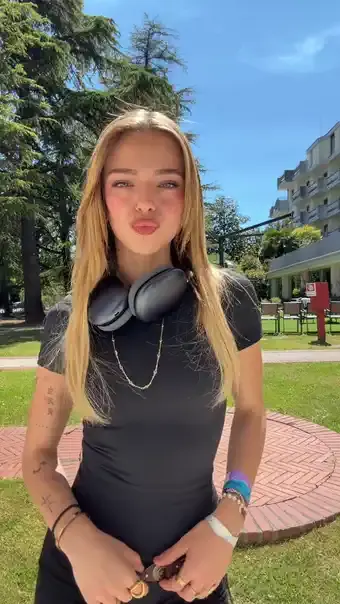
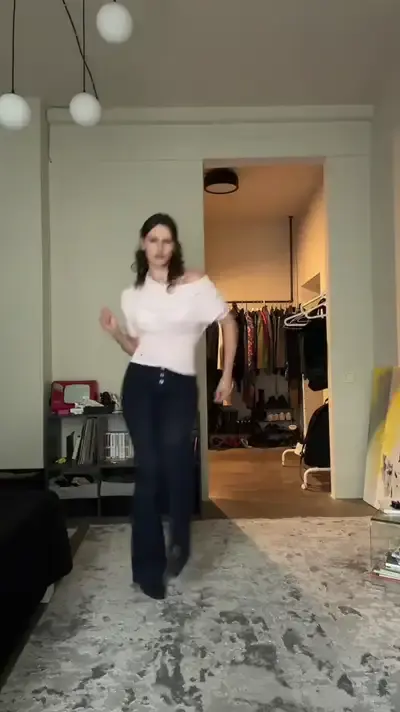
The grid shows dance templates, and they work differently: you upload a photo of yourself, and the template already holds the moves, the setting and the camera. Reach for them when you want to be the one dancing. A written scene is the better route when the characters should be invented, or when no template has the setting you have in mind.
Limits to plan around
One run makes one short scene, not a finished film, and the same text can come back with a different angle or a different-looking character, so plan a second attempt for shots that matter. Rendering usually takes a few minutes and a busy queue can stretch it. Real public figures, impersonation and sexual content are off limits in prompts.
Ready-made templates
FAQ
Can I try text to video AI for free?
Written scenes are paid in stars at the cost shown for each model. A new account receives 5 stars once its email is confirmed, so you can check right away whether they cover a first scene. The “Free today” labels apply to selected templates with a daily limit, not to prompt runs.
How closely does the AI follow my description?
The main subjects and actions you name normally make it into the frame. Anything left unsaid is filled in by the model, so spell out the details you care about, like the color of a coat, the time of day or the direction the camera moves. When one element keeps coming out wrong, rewrite just that part more plainly and run it again.
Can I add a photo to the text?
Yes. Create video accepts an optional photo next to the description: the words set the story, and the photo gives the model the person or object to place in it. That is the photo-to-video route; this page is about scenes where everything on screen comes from the text alone.
Where do my finished videos go?
Each finished clip lands in your account history and downloads as an ordinary video file. It all happens in the browser, so you can start a scene on your laptop and pick up the result on your phone, with no app to install.